Edit a token category or make it the default
Overview
This flow describes how to change the name or the shorthand of a token category, or make the category the default for its resource type. Care preselects the default category when staff give a patient a token for a schedule of that resource type.
Pre-requisites
- You sign in to Care with a staff account.
- You are a member of the facility.
- The token category is created for the facility. See Create a token category.
- If you want to make a category the default, the category is not the default now.
- You have the permissions listed below.
Permissions
| Permission | Access |
|---|---|
| Can Create on Token Category | Lets you save changes to a token category and make a category the default. You must hold it in the Administration organization, which every facility has. If you hold it only in a department or team, Care refuses the change with "Access Denied to Token Category". By default, the Admin, Staff and Facility Admin roles hold it. The Administrator role does not hold it. |
| Can list token category on Facility | Lets you see Token Category in the settings and open the list of categories. Care also checks it when you save changes or make a category the default. Hold it in the Administration organization or in a department or team of the facility. By default, the Admin, Staff, Facility Admin, Doctor, Nurse and Administrator roles hold it. |
Steps
1. Open the token categories
In the facility sidebar, select Settings.
In the settings sidebar, under Facility, select Token Category.
Care opens the Token Categories page, with a section for each resource type.
2. Find the category
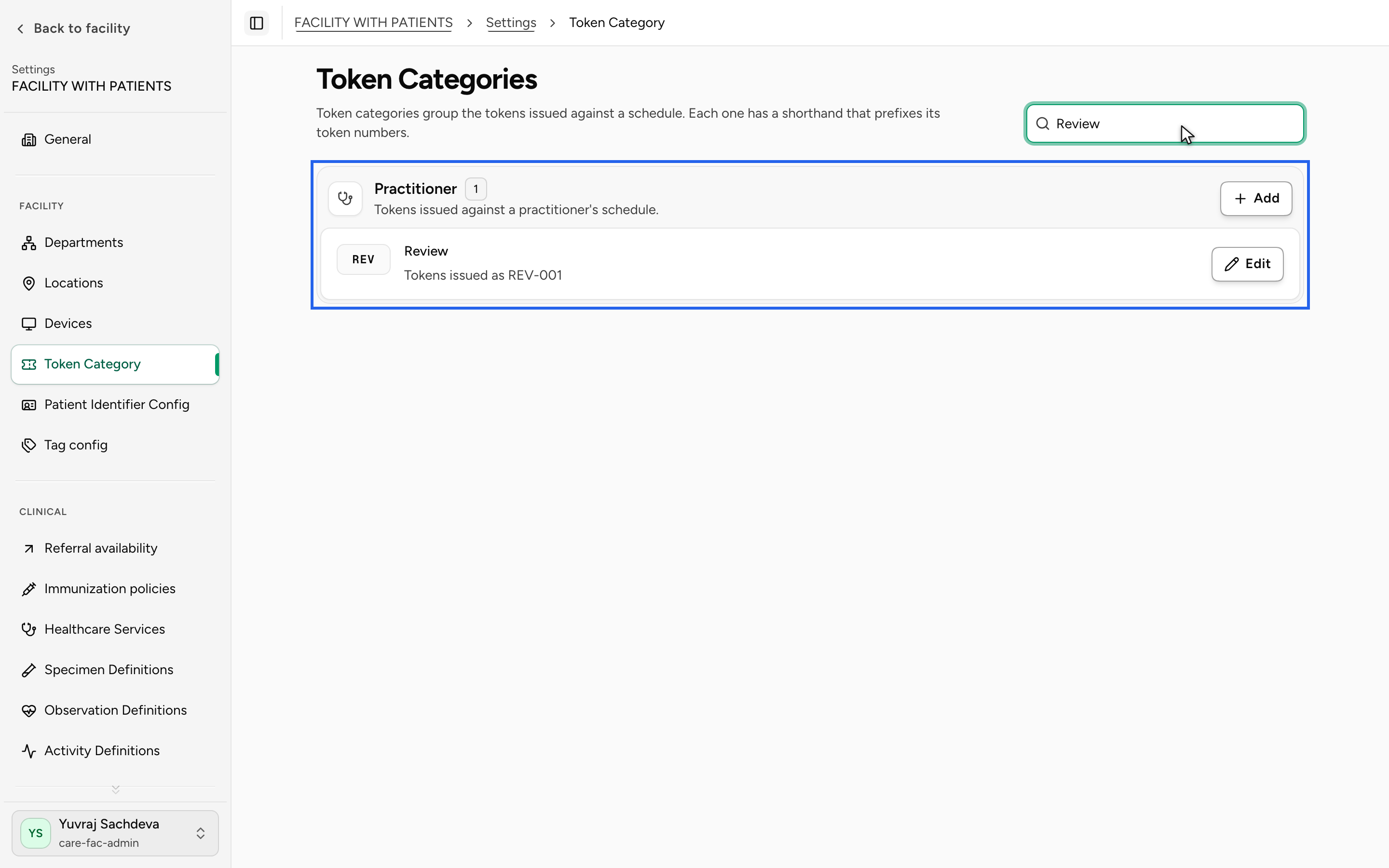
To find a category by its name or shorthand, type in Search Token Categories.
If no category matches, Care shows "No token categories found".
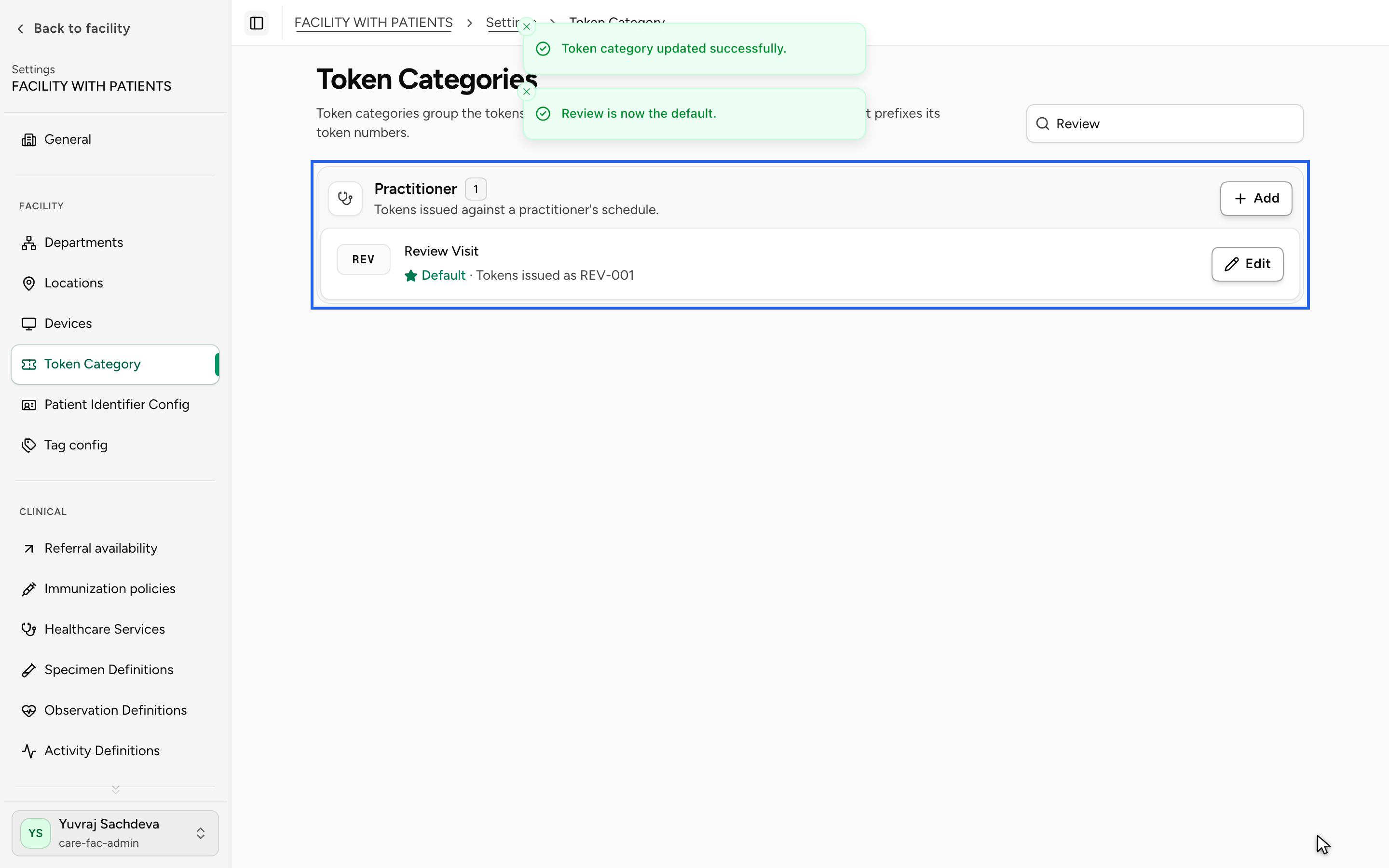
In each section, the default category is first and has the label Default.
3. Open the category
On the category, select Edit.
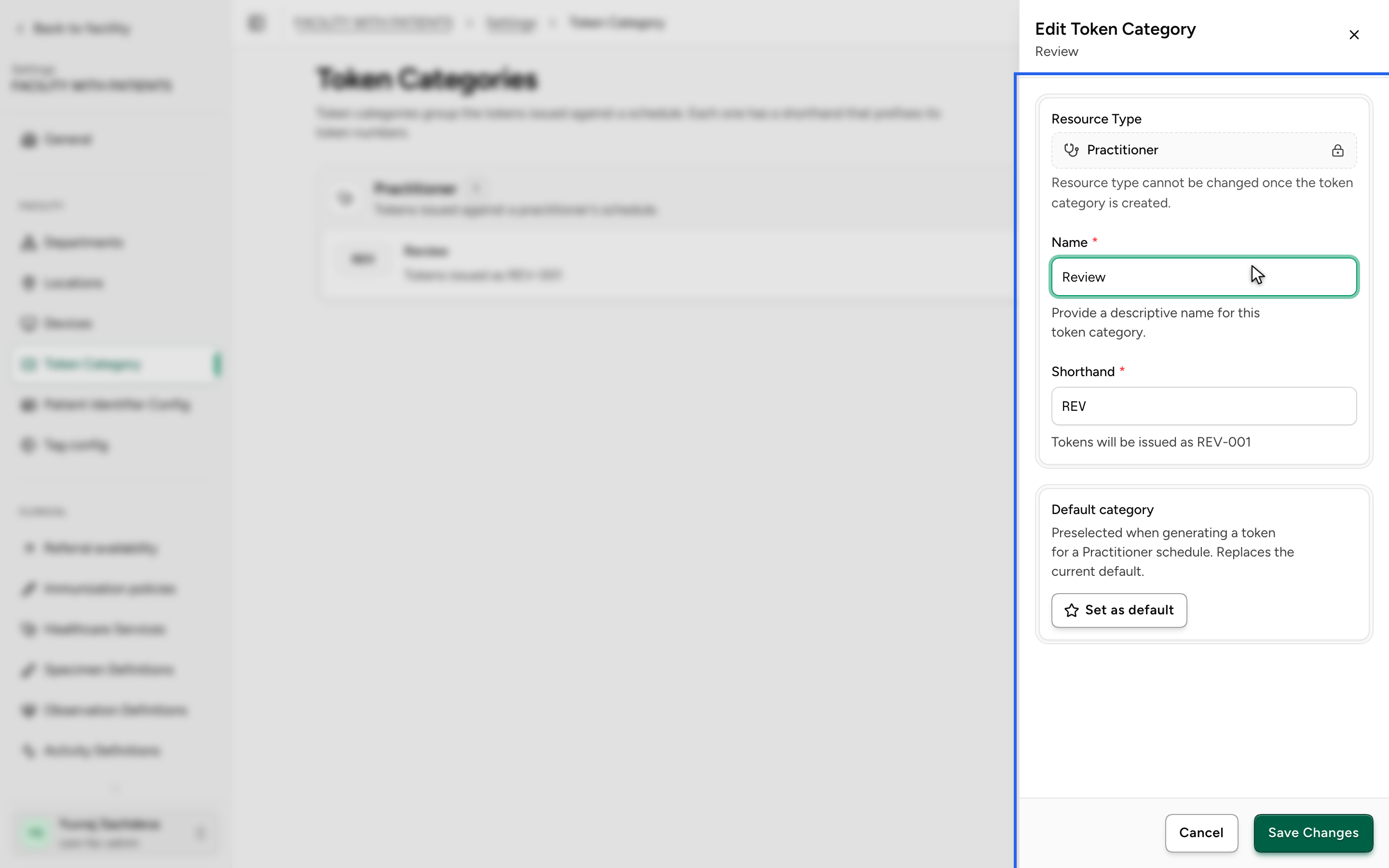
Care opens the Edit Token Category form.
The Resource Type field shows the resource type of the category. You cannot change it.
4. Change the name or the shorthand
If you only want to make the category the default, go to step 5.
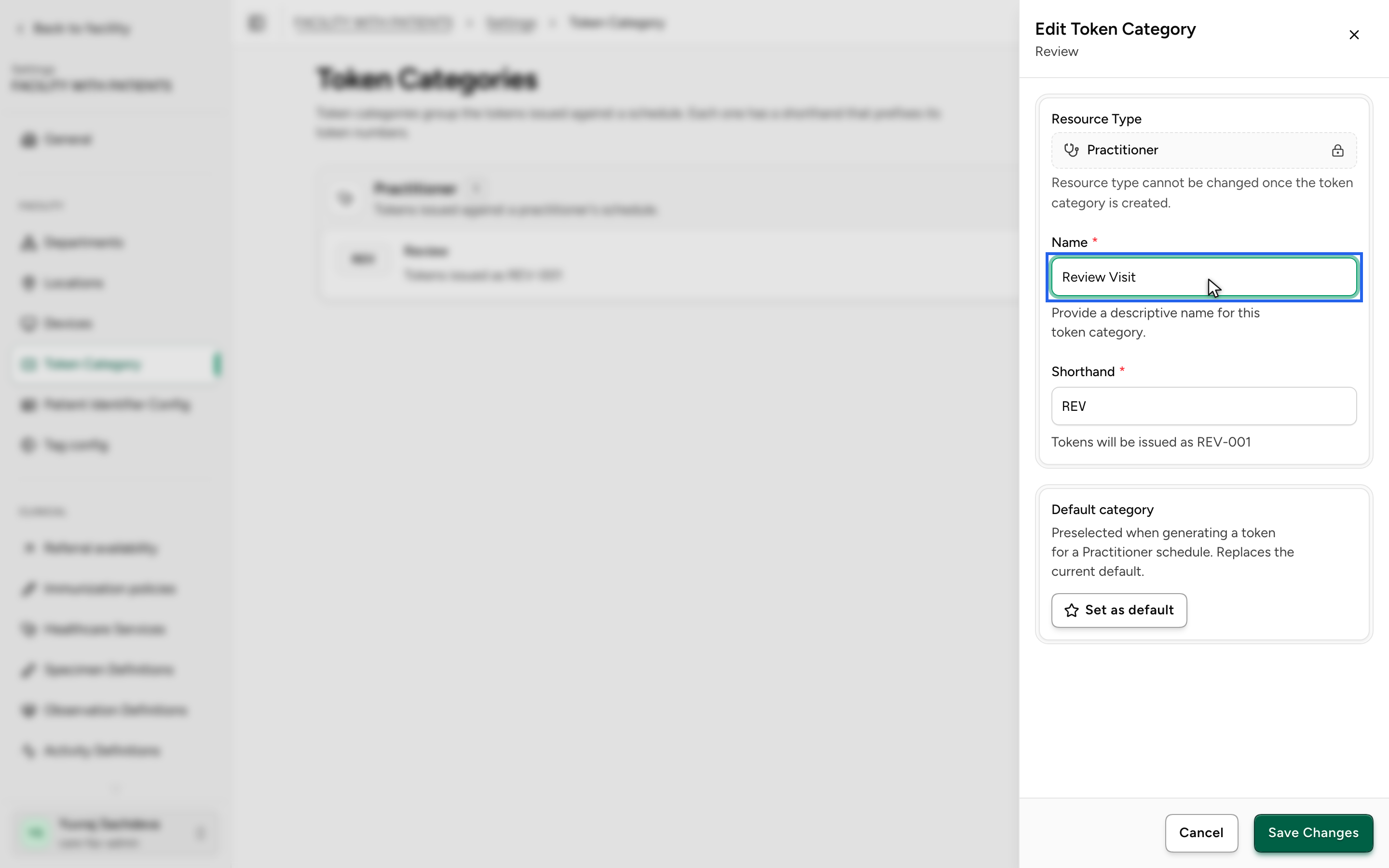
| Components | What it captures |
|---|---|
| Name | A descriptive name for the category. This field is required. |
| Shorthand | A short identifier for the category, at most 5 characters. This field is required. Care puts it in front of each token number of the category. |
As you type the shorthand, the form shows a preview of the token numbers.
If you leave Name or Shorthand empty, Care shows "This field is required".
5. Make the category the default
If you do not want to change the default category, go to step 6.
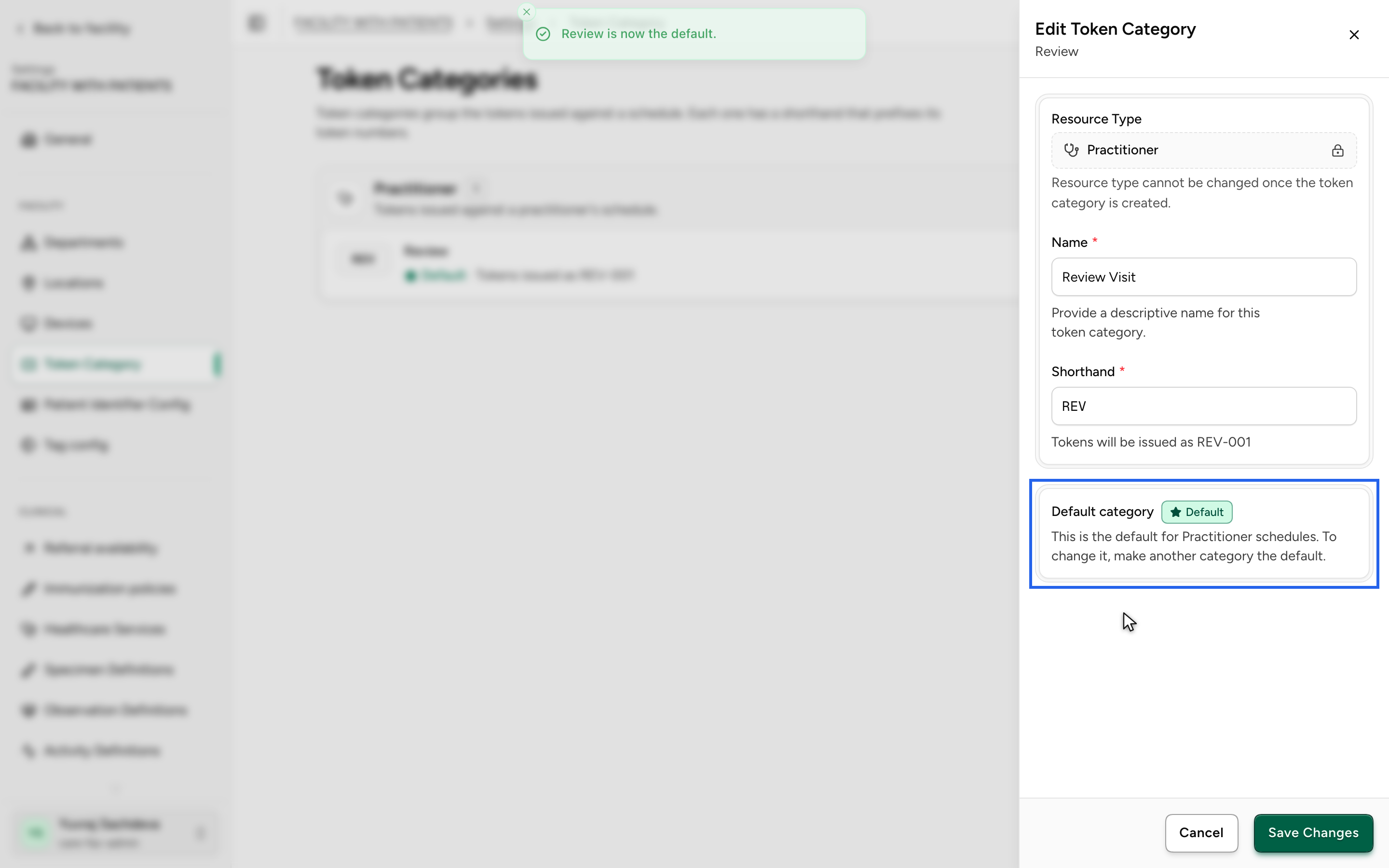
Find the Default category section of the form.
Select Set as default.
Care makes the change at once. You do not need to select Save Changes for it.
Care shows a message that the category is now the default.
If the category is already the default, the section does not show Set as default. The section tells you to make another category the default instead.
Each resource type has at most one default category. You cannot remove the default from a category. To change the default, make another category of the same resource type the default.
6. Save the changes
If you changed the name or the shorthand, select Save Changes.
Care shows "Token category updated successfully."
Expected Outcome
- If you saved changes, the category has the new name or shorthand. Its resource type stays the same.
- If you made the category the default, it has the label Default and is first in its section. The earlier default of that resource type is no longer the default.
- When staff give a patient a token for a schedule of that resource type, Care preselects the default category.
Related
Concepts:
Flows: