Generate a token for an appointment
Overview
This flow describes how to give a patient a token for an appointment with a practitioner. The token puts the patient in a queue for that practitioner.
Pre-requisites
- You are a member of the facility.
- The patient has an appointment at the facility, and the appointment has no token yet. An appointment can have only one token.
- If the appointment is Cancelled, Entered in Error, Rescheduled, No Show or Fulfilled, Care does not offer Generate Token.
- A token category exists for the practitioner resource type. See Create a token category.
- You have the permissions listed below.
Permissions
| Permission | Access |
|---|---|
| Can update bookings on Object | Lets you generate the token. When you save, Care checks this permission and no token permission. Hold it where the paragraph below the table says. Without it, Care shows "You do not have permission to update bookings". By default, the Admin, Staff, Facility Admin, Doctor and Nurse roles hold it. The Administrator role does not hold it. |
| Can Create on Token | Shows Generate Token on the appointment page. It does not let you generate the token without "Can update bookings on Object". Hold it in the Administration organization, which every facility has, or in a department or team of the facility. By default, the Admin, Staff, Facility Admin, Doctor, Nurse and Administrator roles hold it. |
| Can list bookings on Object | Lets you see Appointments in the facility sidebar, and list and open the appointments of the practitioner. For the sidebar item and the appointment page, hold it in the Administration organization, or in a department or team. To list and open the appointments, also hold it where the paragraph below the table says. By default, the Admin, Staff, Facility Admin, Doctor, Nurse and Administrator roles hold it. |
| Can list token category on Facility | Lets you see the token categories in the Generate Token form. Hold it in the Administration organization, or in a department or team of the facility. By default, the Admin, Staff, Facility Admin, Doctor, Nurse and Administrator roles hold it. |
Care checks "Can update bookings on Object" and "Can list bookings on Object" for the practitioner of the appointment. Hold them in the Administration organization, in a facility organization that the practitioner belongs to, or in an organization above it.
Steps
1. Open the appointment
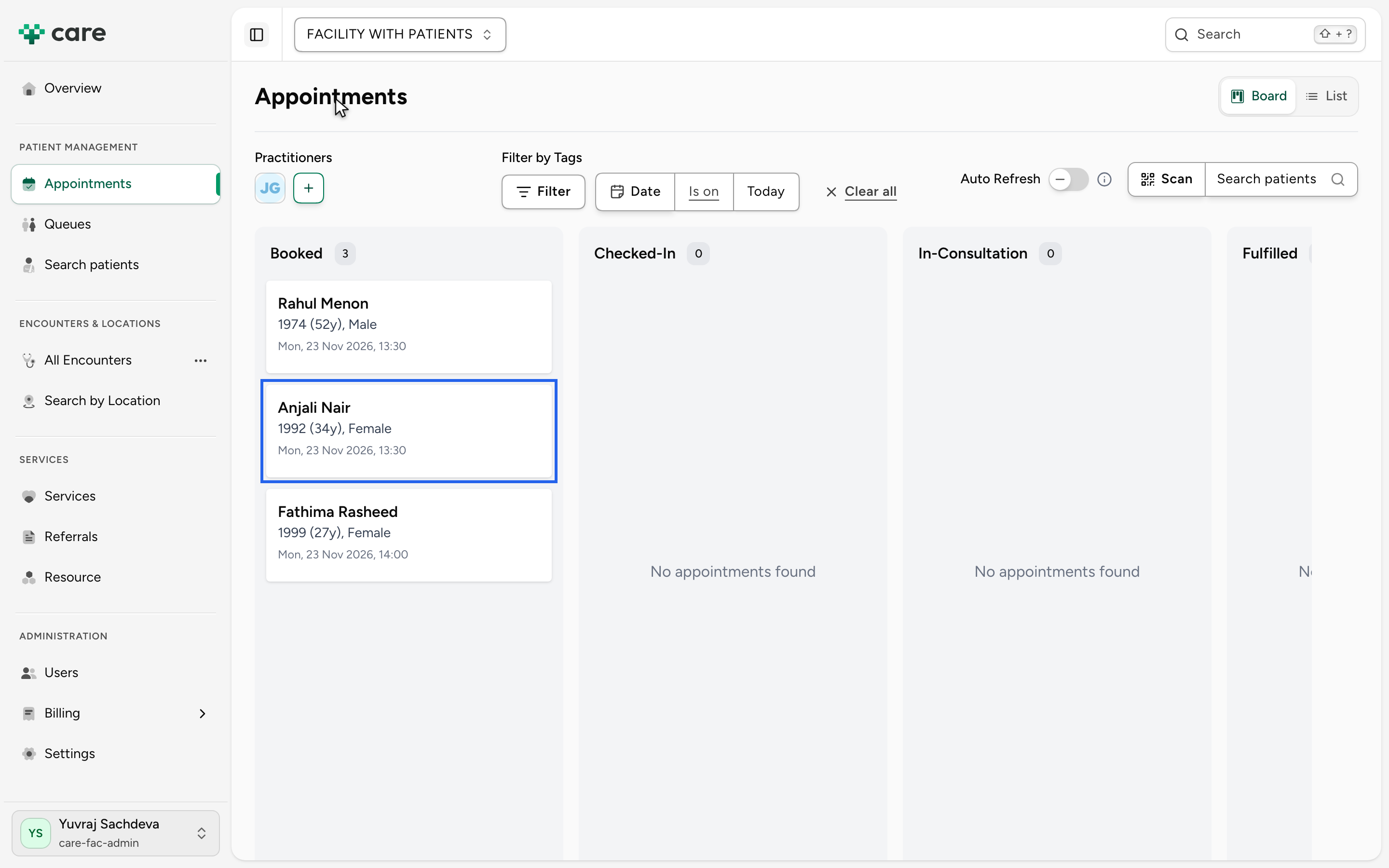
- In the facility sidebar, under Patient Management, select Appointments.
- Choose the practitioner of the appointment. The page lists the appointments of that practitioner.
- Open the patient's appointment. The appointment page has a Token section.
2. Select Generate Token
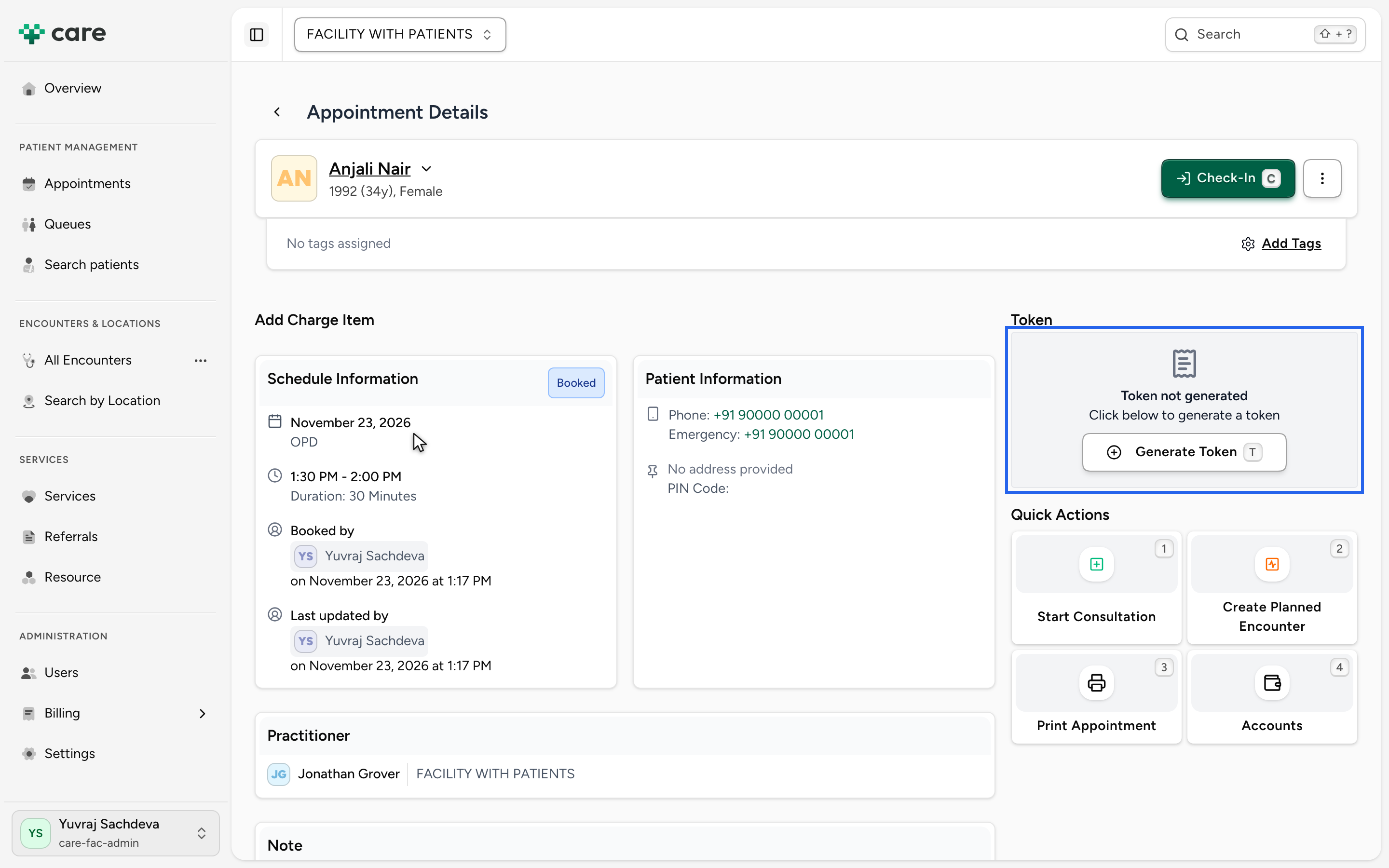
- In the Token section, find the Token not generated panel.
- Select Generate Token. You can also press T.
- Care opens the Generate Token form.
- If the Token section shows a token card, the appointment already has a token.
- If the Token section shows no panel and no token card, check the appointment status and your permissions.
3. Check the token category
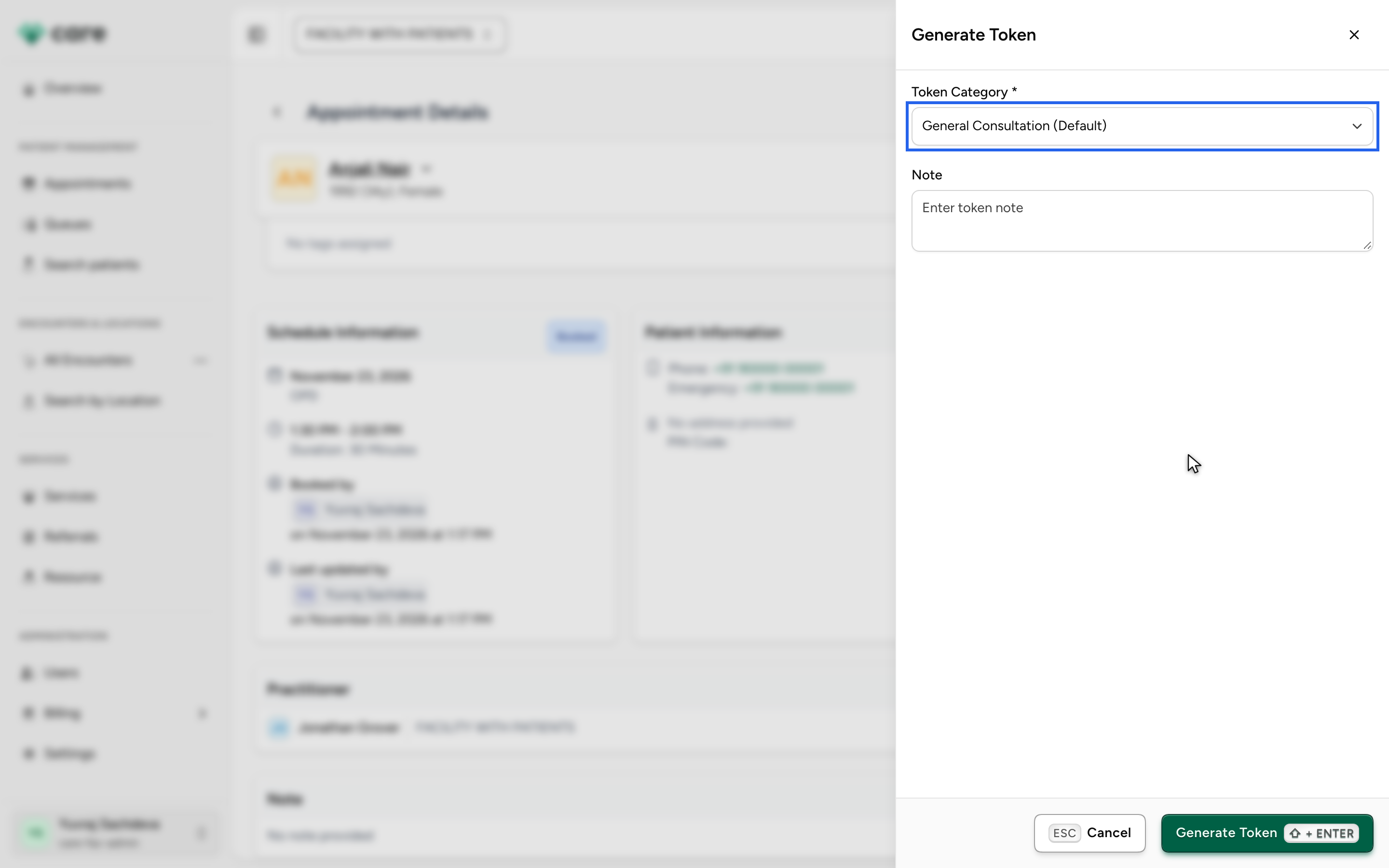
- The Token Category field lists the token categories for practitioners.
- Care selects the default category and marks it "(Default)".
- If the practitioner resource type has no default category, Care selects no category. Select one from the list.
- To use a different category, select it from the list.
4. Add a note
- Optionally, enter a Note.
5. Generate the token
- Select Generate Token.
- The button stays disabled until you select a category.
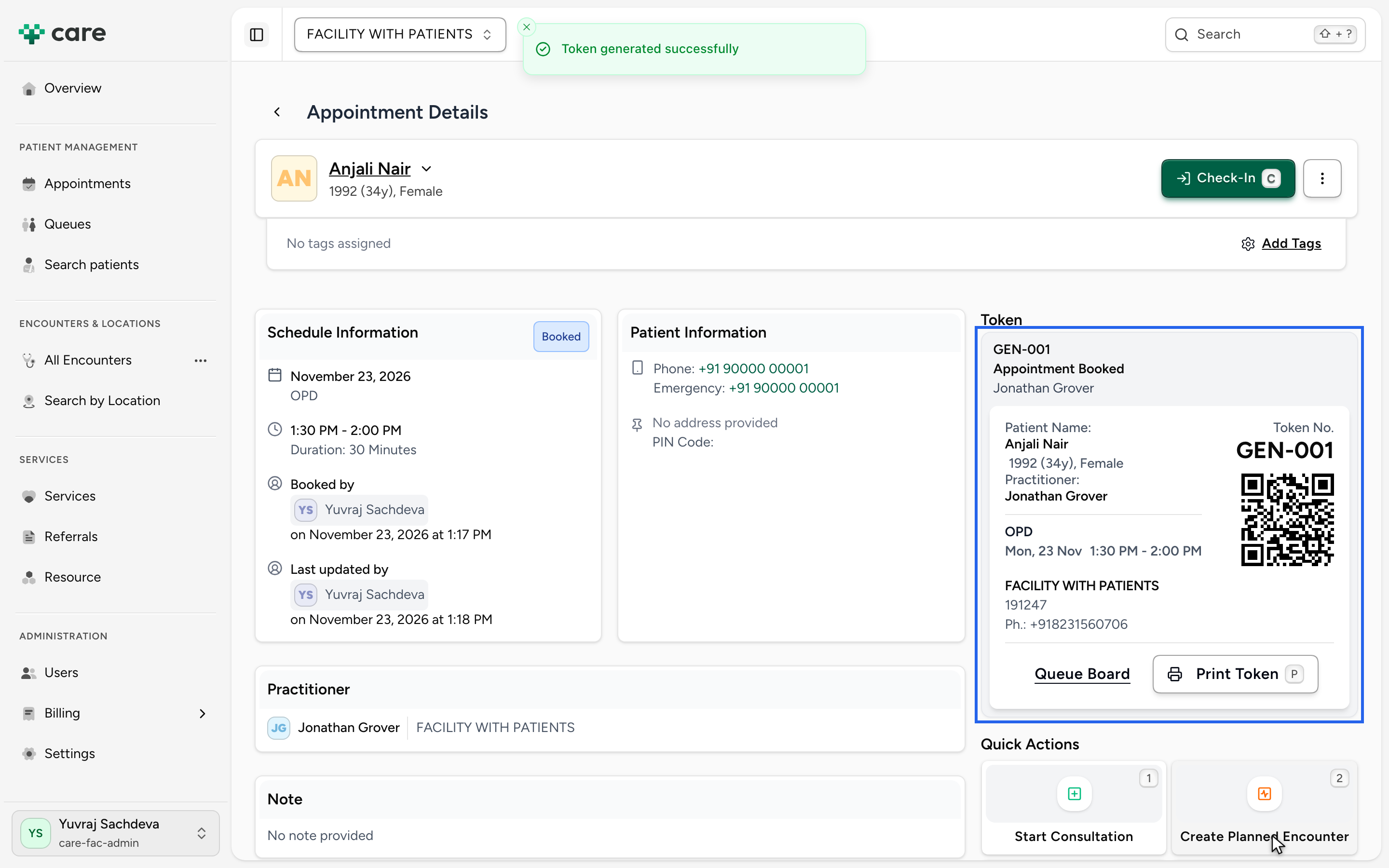
- Care shows "Token generated successfully".
Expected Outcome
- The Token section of the appointment page shows the token card.
- The token card shows a QR code for the patient.
- The token card has Queue board, which opens the queue of the token, and Print Token.
- The token is linked to the appointment and to the patient.
- Care puts the token in a queue that Care generates for the practitioner and the date of the appointment. Care never uses a queue that staff create.
- If Care has not generated that queue yet, Care creates it. On the queue list, this queue has the title Primary Queue.
- Care counts token numbers separately for each category in the queue. The number starts with the shorthand of the category, for example GEN-007.
- The appointments list shows the token number for the appointment.
- If the appointment is cancelled or rescheduled later, its token does not change.
Related
Concepts:
Flows: